Get Started For Free
Model selection
Image

Your file stays on this device and uploads when you sign in to generate.

Credits required:
25 credits

Video Preview

See a AI Christmas Pet Video example
Sample video - Create your own AI-generated video
AI Christmas Pet Video preview
AI Christmas Pet Video
See a AI Christmas Pet Video example
AI Christmas Pet Video preview

See a AI Christmas Pet Video example

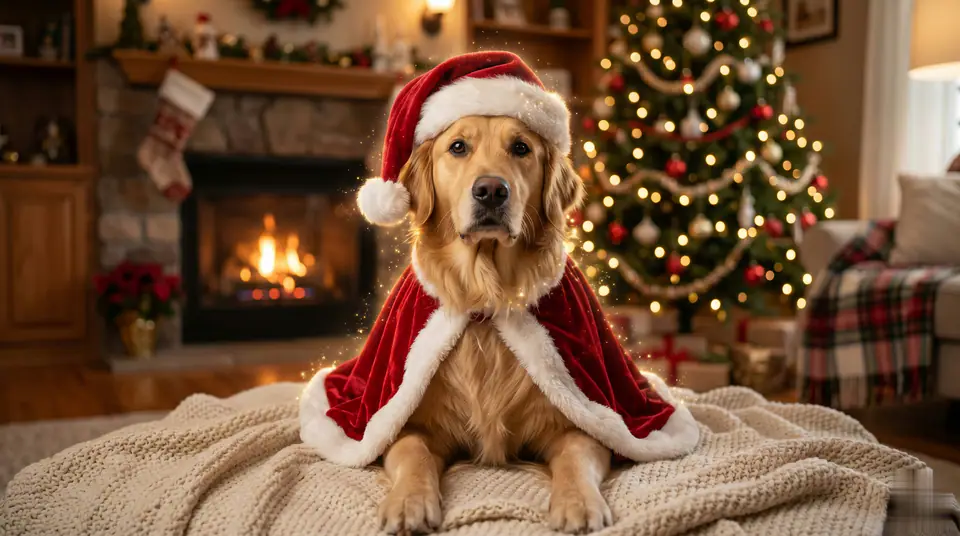
Turn your pet into Santa with a Christmas pet transformation video.

Prepared input workflow
AI Christmas Pet Video starts with 1 required image upload and a prepared prompt so the required source material is clear.
Model-aware controls
The default path uses Kling AI, with 16:9 / 9:16 / 1:1 framing and 5s / 8s duration options.
Effect-specific direction
Turn your pet into Santa with a Christmas pet transformation video.
Review before generation
Watch the sample video to check the intended motion, framing, and visual treatment before spending credits.

More generators

More AI video generators

Compare adjacent video effects before refining the prompt, upload, model, or format for this workflow.

Browse all effects

Quick answer

AI Christmas Pet Video: what it does and when to use it

AI Christmas Pet Video is an AI video effect: a prepared prompt and preset settings turn your photo into a short clip. Turn your pet into Santa with a Christmas pet transformation video. Use it for social posts, ads, creator content, or a quick campaign concept.

1 image upload requiredAspect ratio 16:9 / 9:16 / 1:1Kling AIFrom 25 credits
Workflow
AI video effect
Inputs
1 image upload required
Default model
Kling AI
Aspect ratios
16:9 / 9:16 / 1:1
Duration presets
5s / 8s
Starting credits
25

How It Works

Simple 3-Step Process

Create AI Christmas Pet Video with a focused three-step workflow.

1
Prepare the source
Review AI Christmas Pet Video and provide 1 required image upload with a clear subject and usable framing.
2
Check the controls
Confirm Kling AI, choose 16:9 / 9:16 / 1:1, and select 5s / 8s for the destination channel.
3
Generate and review
Create the clip, inspect subject consistency and motion quality, then refine one input at a time.

Frequently Asked Questions

Frequently Asked Questions

Practical answers about creating AI Christmas Pet Video.

Turn your pet into Santa with a Christmas pet transformation video.

The prepared workflow uses 1 required image upload.

The default model is Kling AI; supported framing includes 16:9 / 9:16 / 1:1, with 5s / 8s duration options.

Yes. Keep the preset direction, then refine subject, movement, camera, lighting, or output details.

Check subject consistency, motion, framing, artifacts, and whether the clip fits the intended channel.

Yes, when your plan permits the intended use and you hold the necessary rights to every uploaded reference.

Best uses

Best uses for AI Christmas Pet Video

AI Christmas Pet Video works best with a clear subject, a clean source image, and one change at a time between generations.

Short social clips
Turn one photo into a short vertical clip for Reels, TikTok, or Shorts.
Ad and campaign concepts
Test a playful visual hook for an ad or campaign before committing editing time.
Creator content tests
Try the effect on a few source photos and keep the version that reads best.

Generator guide

Before you generate

Review the preset before changing it
The preset already sets the core motion, so extra prompt text should refine it rather than replace it.
Prepare the source image
This effect needs one image. Use clean, well-lit photos with a clearly visible subject.
Match the publishing format
Choose 16:9 / 9:16 / 1:1 based on where the clip will run: social posts, ads, or landing pages.
Prepared input workflow
AI Christmas Pet Video starts with 1 required image upload and a prepared prompt so the required source material is clear.

Create your own AI Christmas Pet Video

Turn your pet into Santa with a Christmas pet transformation video.

Review the preview, required inputs, model, and output settings before generating.