
Video Preview
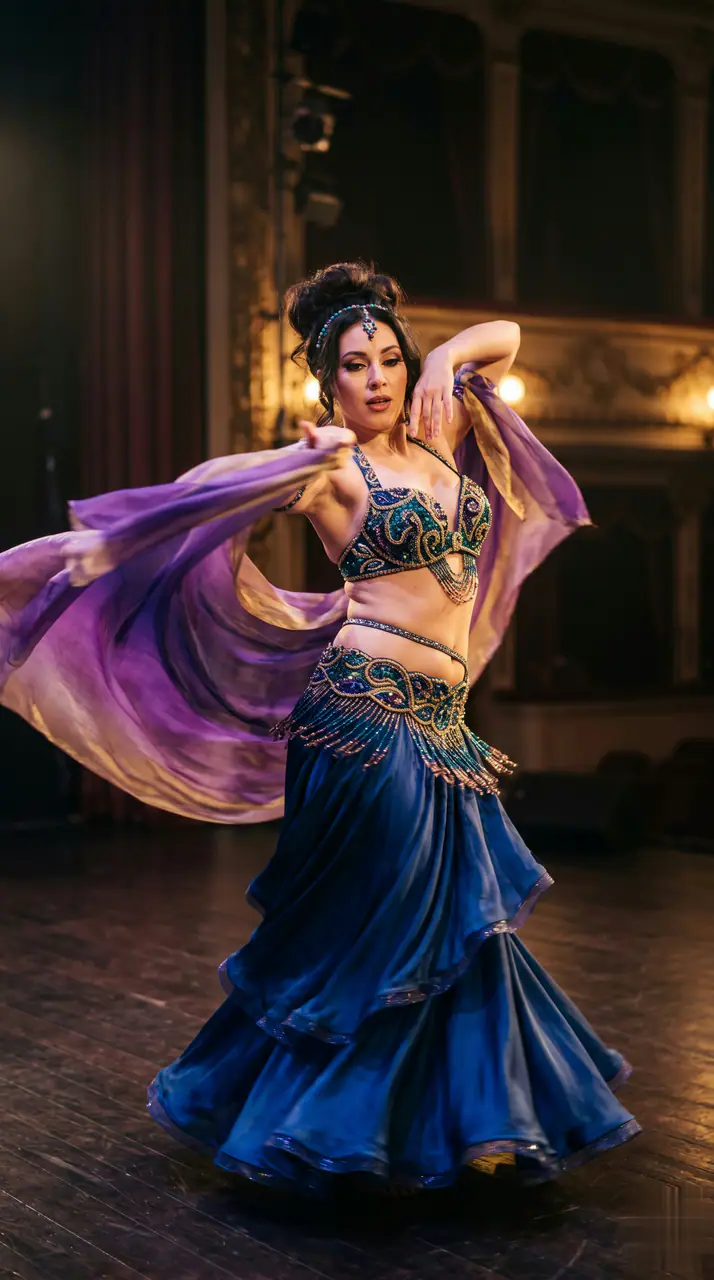
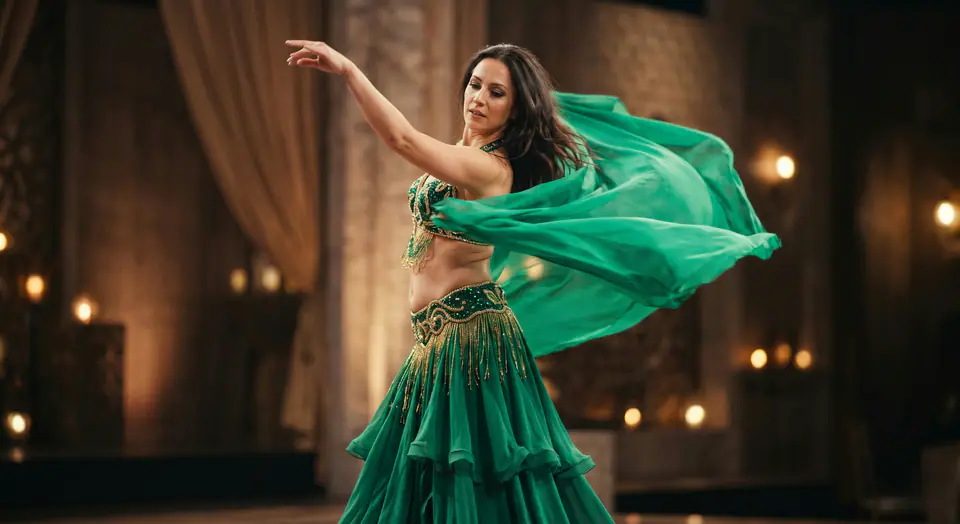
See a AI Belly Dance example
Use an AI belly dance video generator to turn one consented photo into a short dance clip. Choose a supported model, then review the motion before sharing.
More generators
More AI video generators
Compare adjacent video effects before refining the prompt, upload, model, or format for this workflow.
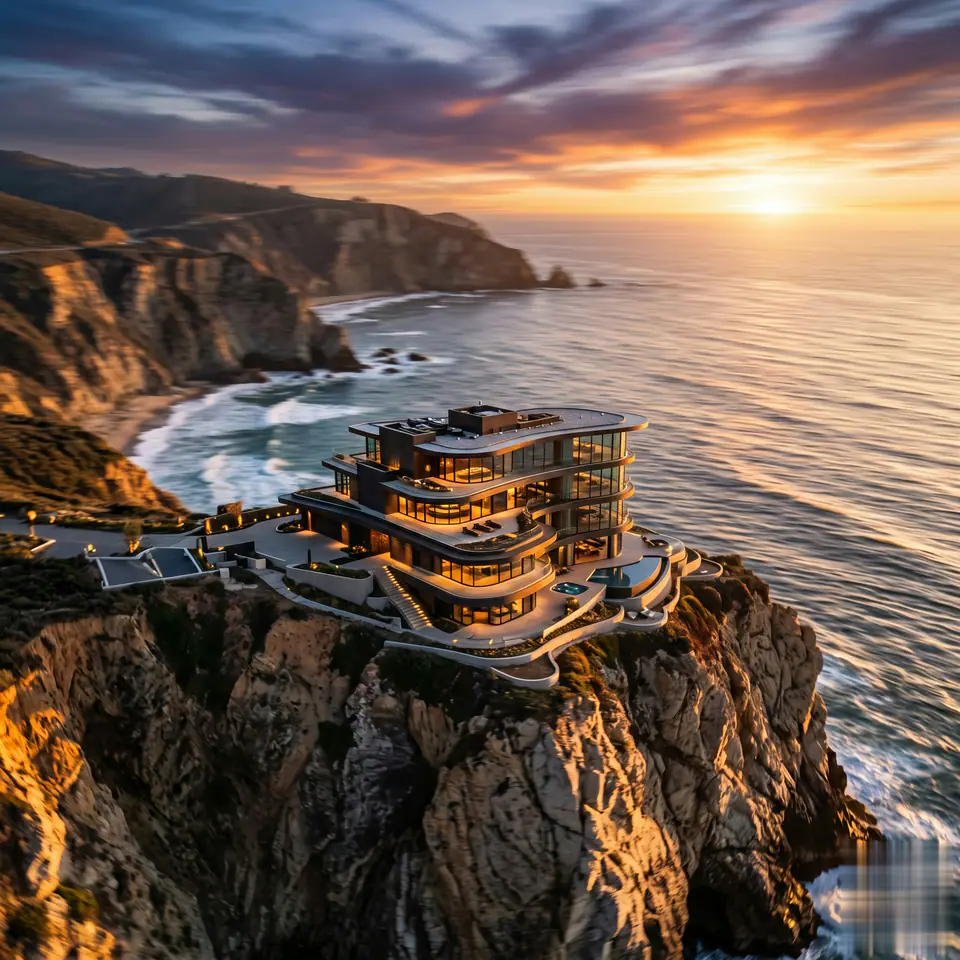
AI Aerial Photography
1 image upload · 5s / 8s video · 16:9 / 9:16 / 1:1
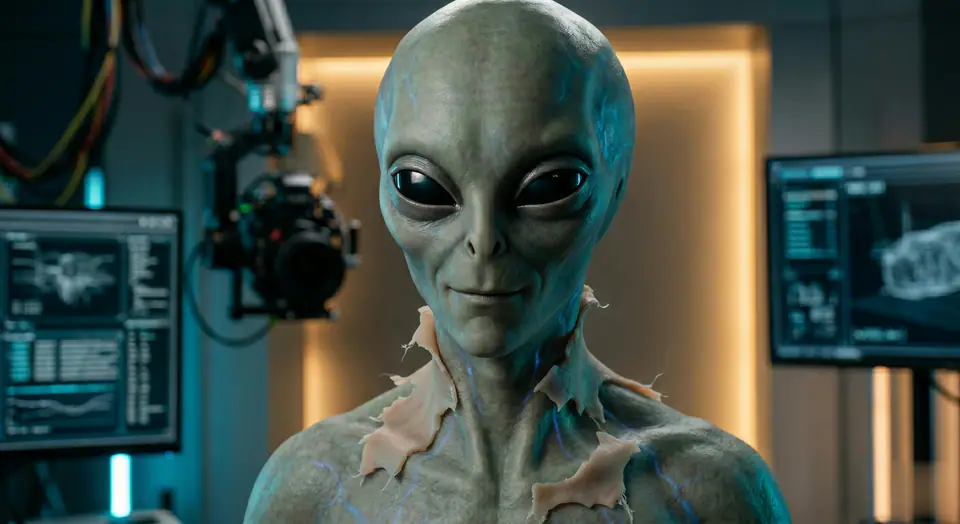
AI Alien Mask
1 image upload · 5s / 8s video · 16:9 / 9:16 / 1:1
AI Anime Video
1 image upload · 5s / 8s video · 16:9 / 9:16 / 1:1
AI ASMR Generator
1 image upload · 5s / 8s video · 16:9 / 9:16 / 1:1
AI Baby Dance
1 image upload · 5s / 8s video · 16:9 / 9:16 / 1:1
AI Baby Podcast
1 image upload · 5s / 8s video · 16:9 / 9:16 / 1:1
Quick answer
AI Belly Dance: what it does and when to use it
AI Belly Dance is an AI video effect: a prepared prompt and preset settings turn your photo into a short clip. Use an AI belly dance video generator to turn one consented photo into a short dance clip. Choose a supported model, then review the motion before sharing. Use it for social posts, ads, creator content, or a quick campaign concept.
- Workflow
- AI video effect
- Inputs
- 1 image upload required
- Default model
- Seedance
- Aspect ratios
- 16:9 / 9:16 / 1:1
- Duration presets
- 5s / 8s
- Starting credits
- 28
How It Works
Simple 3-Step Process
Create AI Belly Dance with a focused three-step workflow.
Frequently Asked Questions
Frequently Asked Questions
Practical answers about creating AI Belly Dance.
Best uses
Best uses for AI Belly Dance
AI Belly Dance works best with a clear subject, a clean source image, and one change at a time between generations.
Generator guide
Before you generate
Create your own AI Belly Dance
Use an AI belly dance video generator to turn one consented photo into a short dance clip. Choose a supported model, then review the motion before sharing.
Review the preview, required inputs, model, and output settings before generating.