Skip to content

Prompt template

AI Motion Blur Image Edit Prompt Template

Reusable image edit prompt for AI Motion Blur, with matching VisioArt generator settings and a local preview.
Start creatingSee pricing
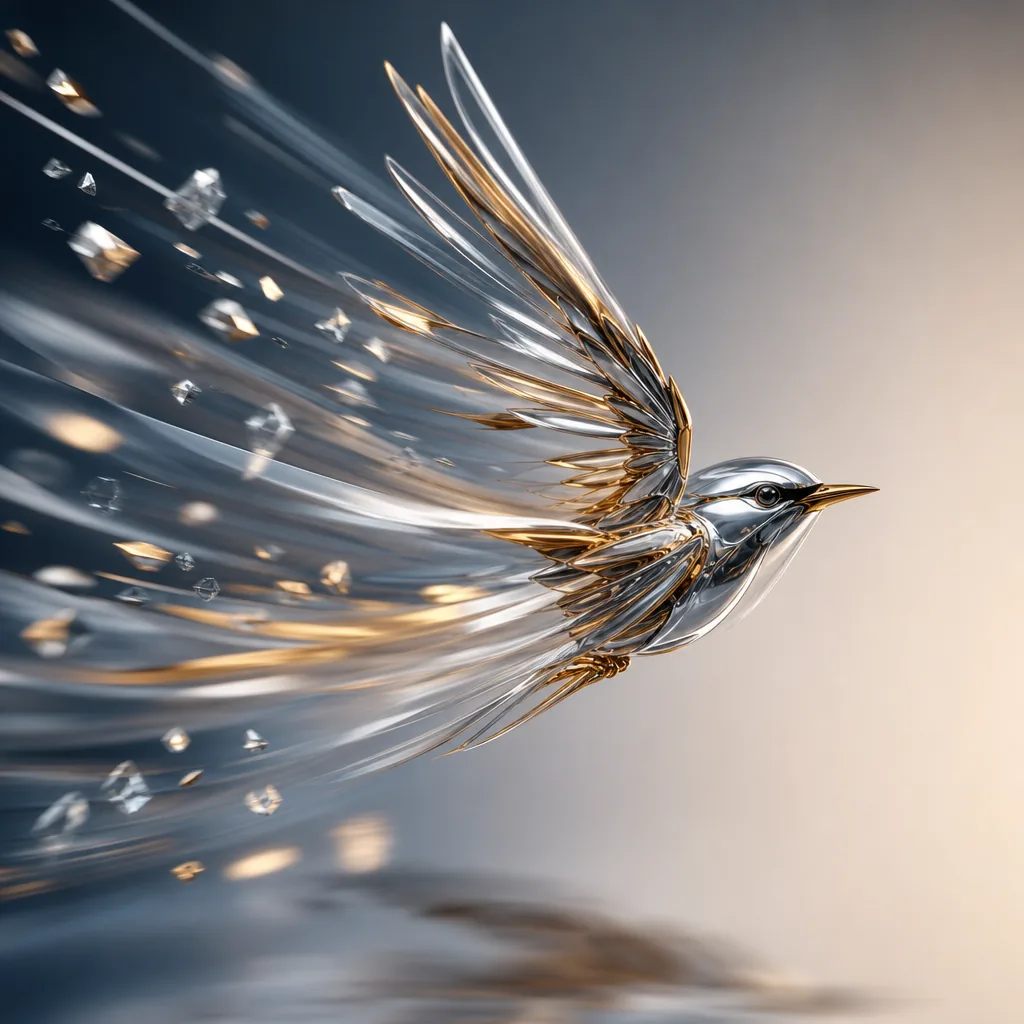
AI Motion Blur Image Edit Prompt Template visual example
imageimage editotherreference image
Prompt
Replace the bracketed placeholders, then tune camera, lighting, format, and output constraints for the exact channel.
Analyze the uploaded image and infer the real motion relationship between the main subject, the surrounding environment, and the camera. Do not apply blur based only on whether something is moving. Instead, determine motion blur from relative motion and photographic behavior.

First identify the focal subject, the moving regions, the static regions, and the most likely camera behavior, such as a fixed camera, camera panning, subject tracking, or slight camera shake. Then apply realistic motion blur only where it would naturally appear in a real photograph.

If the image shows a stationary subject while another object moves past, keep the stationary subject sharp and apply directional blur only to the moving object. If the image shows a moving subject that the camera is tracking, keep the main subject relatively sharp while applying stronger directional blur to the surrounding environment, road, lights, or background. If the image shows a moving subject captured by a fixed camera, allow stronger blur on the subject itself. If both subject and camera move partially together, preserve the subject core while allowing natural blur on edges, limbs, wheels, and nearby background regions.

Scale blur intensity, trail length, and edge streaking according to the implied speed and relative motion. Faster relative motion should create stronger and longer blur; slower relative motion should create lighter and shorter blur. Respect scene depth, occlusion, focus, and spatial layering so the result feels physically plausible.

Preserve identity, facial features, body proportions, object structure, composition, perspective, colors, lighting, materials, and overall scene content. The final image must look like a real photograph captured with authentic motion blur from real movement or camera exposure, not a generic digital blur filter.

Avoid full-image blur, random smearing, ghosting, double edges, fake speed lines, melted structures, inconsistent blur directions, or loss of key subject recognizability.
Best for
AI Motion Blur variants
Reference-guided edits
Reusable image workflows
Model starting points
Nano Banana 2GPT-4o ImageGPT Image 2GPT Image 1.5

Related templates

Keep the campaign moving

Use these adjacent prompt patterns when the same campaign needs another asset format.
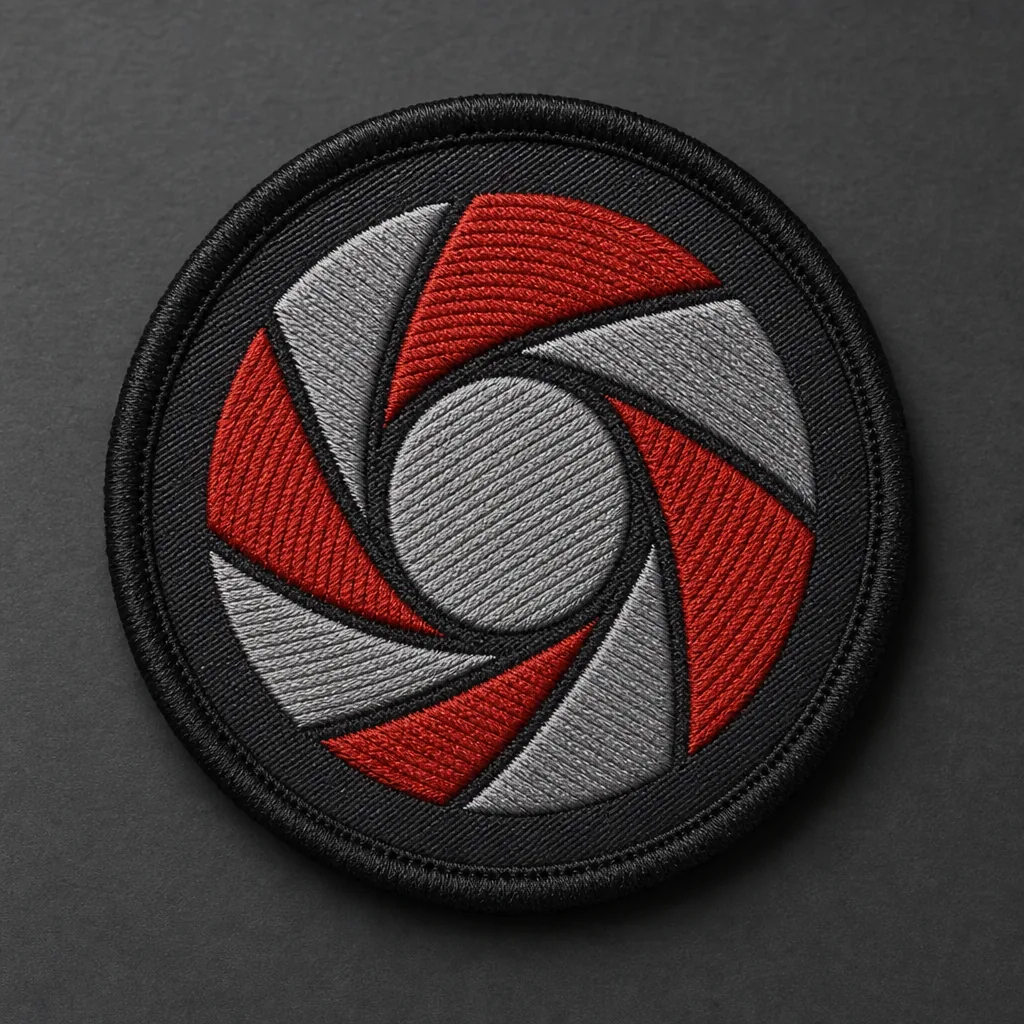
AI Patch Generator Image Prompt Template example
imagemerchtext prompt
AI Patch
Reusable image prompt for AI Patch Generator, with matching VisioArt generator settings and a local preview.
Open template
AI Age Change Filter Image Edit Prompt Template example
imageimage editappearance
AI Age Change Filter
Reusable image edit prompt for AI Age Change Filter, with matching VisioArt generator settings and a local preview.
Open template
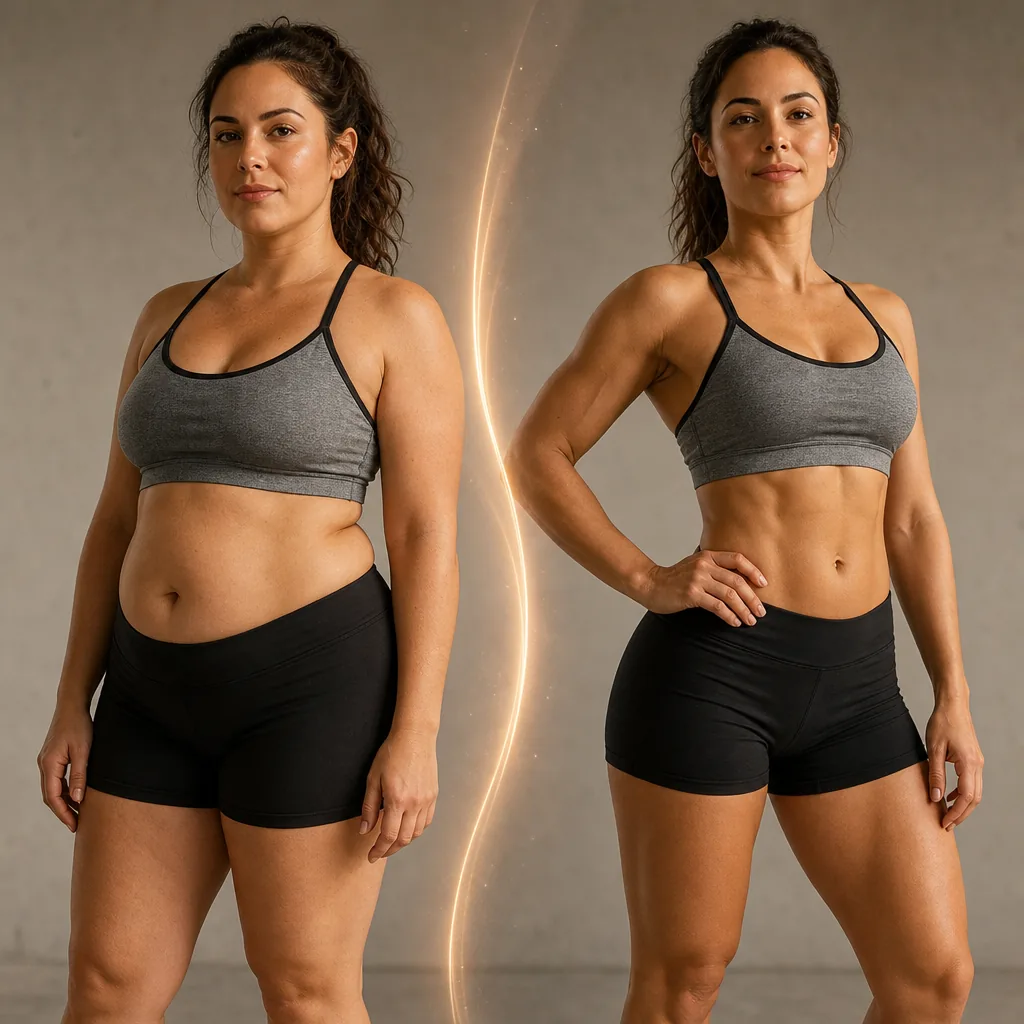
AI Body Editor Image Edit Prompt Template example
imageimage editappearance
AI Body Editor
Reusable image edit prompt for AI Body Editor, with matching VisioArt generator settings and a local preview.
Open template

FAQ

AI Motion Blur FAQ

Clear answers for buyers comparing workflows, model choices, pricing, and production fit.

Reusable image edit prompt for AI Motion Blur, with matching VisioArt generator settings and a local preview.

Use this prompt inside VisioArt.

Start from the recommended tool, paste the prompt, replace the placeholders, and test the strongest model path.

Open recommended toolBrowse templates